Best Ollama Models With OpenClaw
Last updated: August 18, 2026
Quick Answer
The Best Ollama Models With OpenClaw in 2026 are Qwen3:27B for high-end local performance, Qwen3:8B for lightweight local use, and kimi-k2.5:cloud or qwen3.5:cloud when you want cloud power without local GPU overhead. OpenClaw now treats Ollama as a first-class provider, making the setup straightforward and the model selection genuinely consequential.
Key Takeaways
- OpenClaw officially supports Ollama as a first-class local provider, letting you run models entirely on your own hardware with zero API cost
- Qwen3:27B and Qwen3:35B MoE are the top-ranked local models for OpenClaw agents as of August 2026
- Qwen3:8B is the recommended starter model for users with modest hardware, offering strong reasoning at low GPU memory cost
- For coding tasks, qwen2.5-coder:32B and Devstral Small 24B lead the field in OpenClaw coding agents
- Cloud models kimi-k2.5:cloud and qwen3.5:cloud deliver the best results when local hardware is limited
- A single RTX 5090 GPU can run Qwen3:27B comfortably, making it the sweet spot for serious local use
- The OpenClaw gateway supports multiple providers simultaneously, so you can mix local Ollama models with cloud models in one agent workflow
- Minimum hardware for useful local models starts at 8 GB VRAM for 7B to 8B parameter models
Ready to set up your first OpenClaw and Ollama workflow? Start here at ClawTrust
What Is Ollama and How Does It Work With OpenClaw
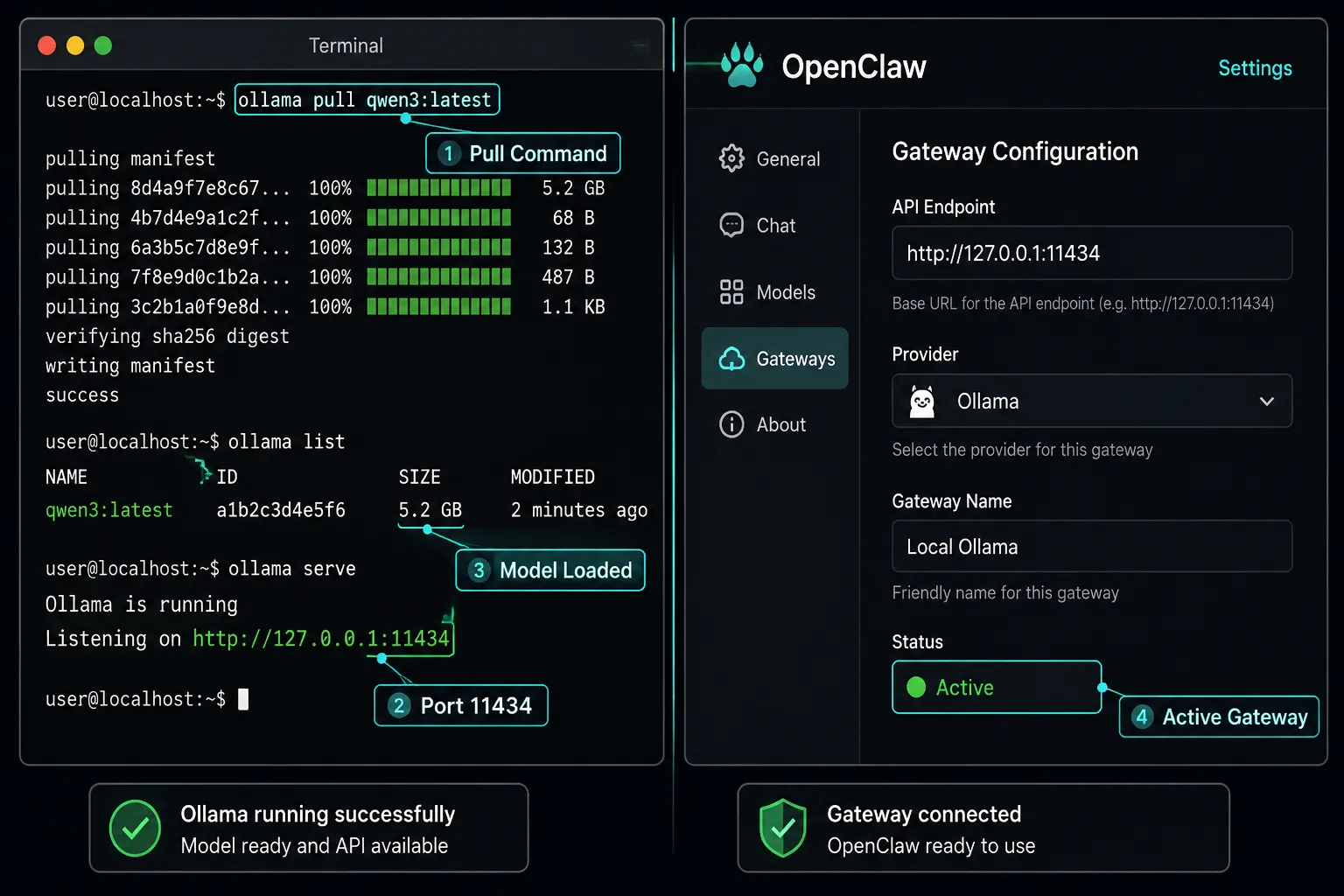
Ollama is a local model server that lets you download, manage, and run open-weight language models directly on your own machine, exposing them through a simple REST API at http://127.0.0.1:11434 by default.
OpenClaw connects to this local server through its provider system, treating Ollama exactly like any cloud provider but routing requests to your hardware instead of a remote data center.
According to the official OpenClaw documentation, Ollama is now a first-class provider in OpenClaw, meaning it receives the same tool-calling, memory, and agent support as paid cloud providers.
The integration works by pointing the OpenClaw gateway to your Ollama server address. Once connected, any model you have pulled locally appears in the OpenClaw model selector alongside cloud options.
This means your agents, tool calls, and memory systems all function identically whether you are using a local Qwen3 model or a remote cloud model.
How the connection works in practice:
- Ollama runs as a background server on your machine or a local network node
- OpenClaw sends requests to
http://127.0.0.1:11434(or a custom server address you set) - The gateway translates OpenClaw agent instructions into Ollama-compatible API calls
- Responses stream back through the same gateway, maintaining context and memory across turns
Quick example configuration block:
Provider: ollama
Base URL: http://127.0.0.1:11434
Model: qwen3:27b
API key: (none required for local)
This zero-API-key setup is one of the biggest reasons users choose local models over cloud providers. There are no usage costs, no rate limits, and no data leaving your machine.
Getting Started: How to Install and Set Up Ollama With OpenClaw
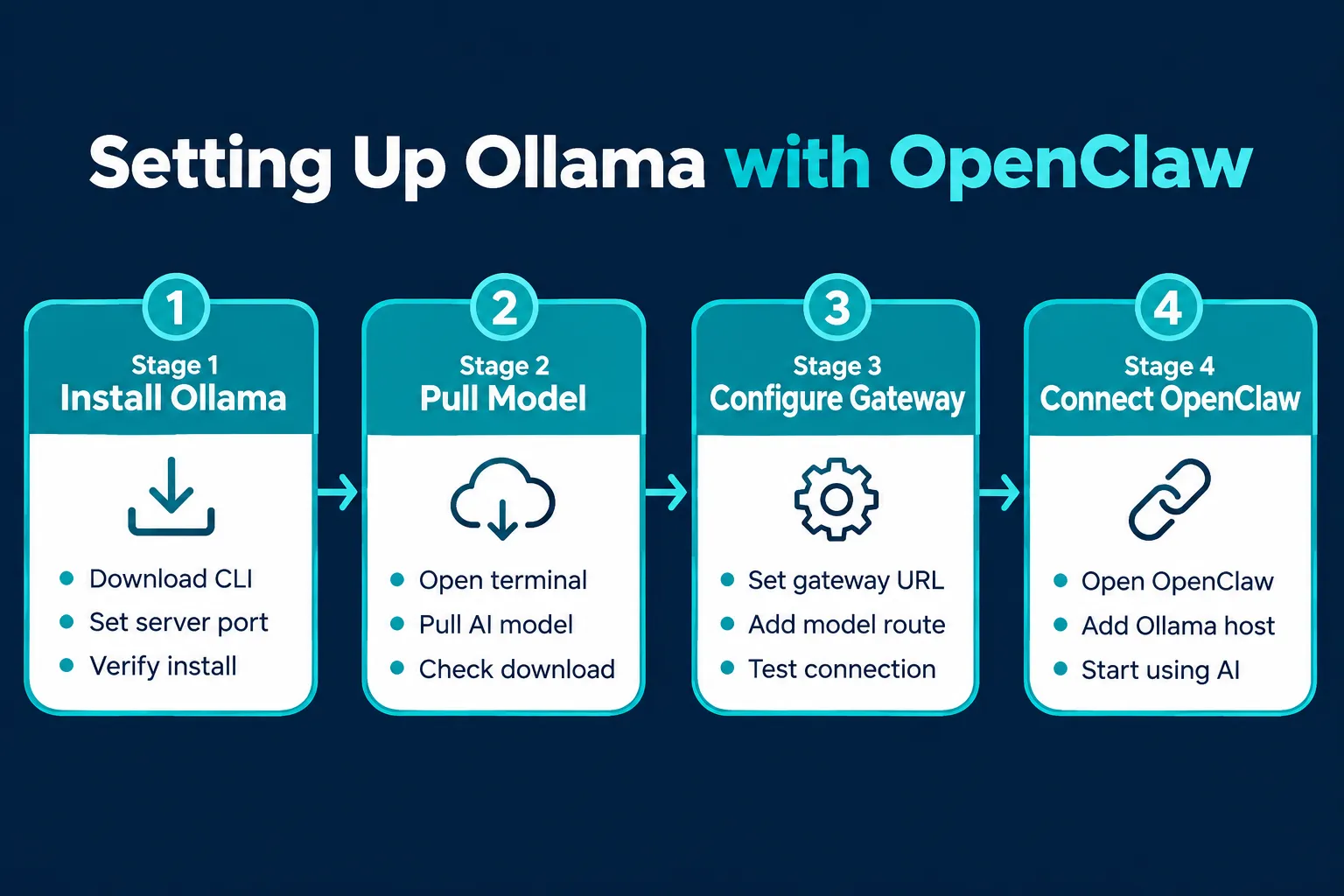
Setting up Ollama with OpenClaw takes under ten minutes if you already have a compatible GPU. The process has three stages: install Ollama, pull your chosen model, then configure the OpenClaw provider settings to point at your local server.
Step 1: Install Ollama
Download and install Ollama from ollama.com for your operating system. On macOS, Ollama uses MLX acceleration on Apple Silicon. On Windows and Linux, it targets CUDA-compatible NVIDIA GPUs.
Step 2: Pull a model
Open your terminal and run:
ollama pull qwen3:27b
For a lighter starting point, use ollama pull qwen3:8b. The ollama pull command downloads the model weights and registers them with your local server automatically.
Step 3: Configure OpenClaw
In OpenClaw settings, navigate to Providers and add a new provider entry. Set the provider type to Ollama, enter http://127.0.0.1:11434 as the base URL, and select your pulled model from the dropdown. The OpenClaw Ollama integration guide covers every configuration field in detail, including how to set a custom server address if you are running Ollama on a separate machine on your local network.
Step 4: Verify the connection
OpenClaw includes a health and diagnostics panel under Provider Settings. A green status indicator confirms your Ollama server is reachable and the selected model is loaded. If you see a connection error, check that the Ollama server process is running and that no firewall is blocking port 11434.
Recommended Models: The Best Ollama Models With OpenClaw by Use Case
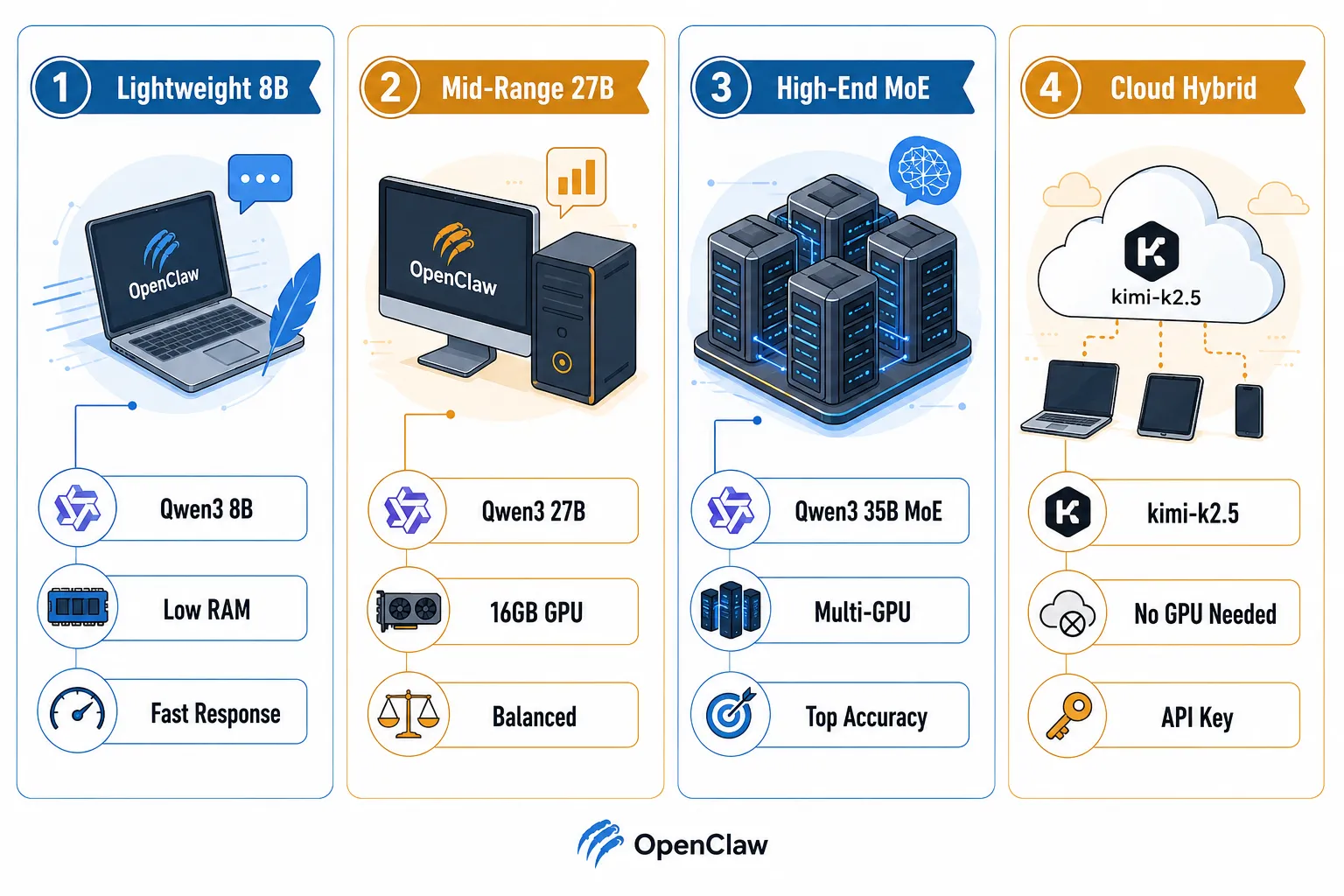
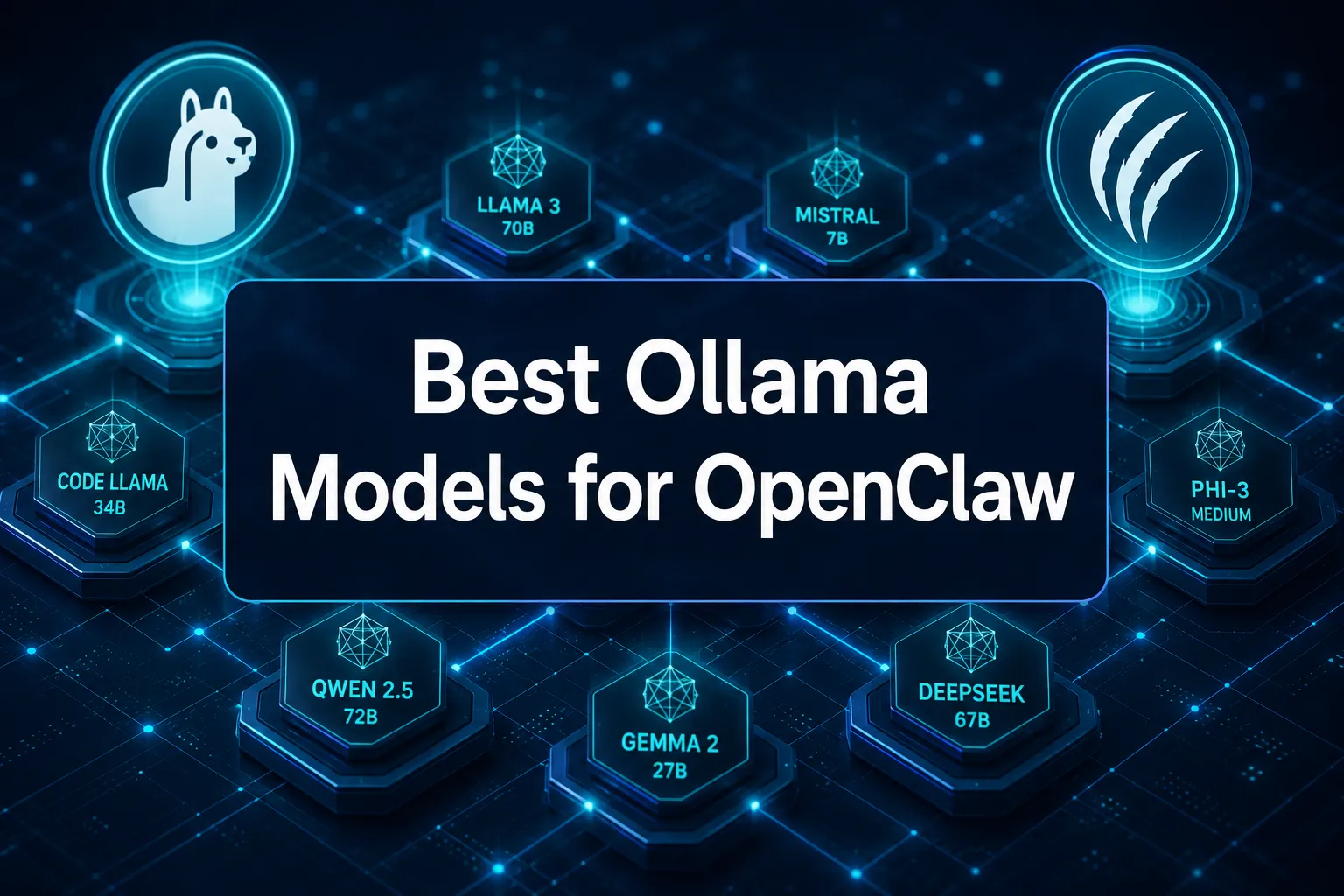
The Best Ollama Models With OpenClaw depend on your hardware, your task type, and whether you prioritize speed or accuracy.
OpenClaw’s official FAQ on models recommends Llama 3.3, Qwen 3, and Mistral Small 3.1 as general-purpose starting points, while the August 2026 rankings from BenchLM place Qwen3.x and Llama 3.x at the top of the Ollama leaderboard.
Ready to set up your first OpenClaw and Ollama workflow? Start here at ClawTrust
Model rankings by tier:
| Model | Size | Best For | Min VRAM |
|---|---|---|---|
| Qwen3:27B | 27B | Agents, reasoning, general | 24 GB |
| Qwen3:35B MoE | 35B MoE | Complex reasoning, coding | 32 GB |
| Qwen3:8B | 8B | Lightweight agents, data tasks | 8 GB |
| gpt-oss:20B | 20B | Balanced general use | 16 GB |
| Llama 3.3 | 70B | Long-context, instruction | 48 GB |
| Devstral Small 24B | 24B | Coding, code review | 20 GB |
| kimi-k2.5:cloud | Cloud | No GPU, top cloud performance | None |
Choosing by use case:
- General agents and reasoning: Qwen3:27B is the top local choice. On a single RTX 5090, it runs at a comfortable inference speed for interactive agent workflows. HaiMaker’s analysis of local models for OpenClaw confirms Qwen3:27B as the leading 27B option for OpenClaw agent tasks.
- Coding tasks: qwen2.5-coder:32B and Devstral Small 24B both handle code generation, review, and debugging well within OpenClaw coding agents. For privacy-first coding environments, these local models mean your code never leaves your machine.
- Lightweight and beginner use: Qwen3:8B and Gemma4 are the officially endorsed starter models. Both run on 8 GB VRAM and deliver strong reasoning for their size.
- MoE architecture: Qwen3:35B MoE uses a mixture-of-experts design that activates only a subset of parameters per token, giving it near-70B quality at lower compute cost. This makes MoE models attractive for users with high-end hardware who want maximum output quality.
- Cloud models through OpenClaw: kimi-k2.5:cloud, qwen3.5:cloud, glm-5.1:cloud, and minimax-m2.7:cloud are the top cloud providers as of August 2026, according to OpenClaw’s launch guides.
Hardware Requirements: How Much RAM and GPU Do You Need
Your hardware sets a hard ceiling on which local models you can run. The minimum floor for any useful local model in OpenClaw is 8 GB of VRAM, which supports 7B to 8B parameter models like Qwen3:8B.
Stepping up to 16 GB VRAM opens gpt-oss:20B and similar mid-range models. A single RTX 5090 with 32 GB VRAM handles Qwen3:27B with headroom to spare, making it the current sweet spot for serious local OpenClaw deployments.
Hardware floor by model size:
- 8 GB VRAM: Qwen3:8B, Gemma4 (8B variant), Phi-4 small
- 16 GB VRAM: gpt-oss:20B, Mistral Small 3.1, Devstral Small 24B (quantized)
- 24 GB VRAM: Qwen3:27B at full precision, Devstral Small 24B at full precision
- 32 GB+ VRAM: Qwen3:35B MoE, Llama 3.3 70B (quantized), DeepSeek R1 variants
- 48 GB+ VRAM: Llama 3.3 70B at full precision, largest Qwen3 variants
Apple Silicon users running MLX-accelerated models share system memory between CPU and GPU, so a MacBook Pro with 64 GB unified memory can run Qwen3:27B without a discrete GPU.
LocalAI Master’s Ollama model guide notes that unified memory Macs have become a popular alternative to NVIDIA GPU rigs for local model inference in 2026.
RAM (system memory) also matters. Ollama loads model weights into VRAM but uses system RAM for context management and memory.
A minimum of 16 GB system RAM is recommended for any agent workflow; 32 GB is better when running large context windows or multiple concurrent agents.
OpenClaw Configuration: Gateway, API, and Provider Settings
OpenClaw’s gateway acts as the central routing layer between your agents and all model providers, whether local or cloud.
Configuring the gateway correctly is what allows you to mix Ollama local models with cloud models in a single agent session.
Ready to set up your first OpenClaw and Ollama workflow? Start here at ClawTrust
Key configuration concepts:
The quot models quot selector in OpenClaw lets you assign a quot alias quot to each provider connection, so your agents reference a friendly name rather than a raw endpoint. For example, you might set quot lmstudio my-local-model quot or an Ollama endpoint as the defaults model primary quot in your agent configuration. This defaults model setting determines which provider handles requests when no explicit model is specified.
The models mode quot setting controls whether OpenClaw operates in local-only mode, cloud-only mode, or a mode quot merge quot hybrid that routes requests based on task complexity. In quot merge quot mode, simple tool calls go to your fast local model while complex reasoning tasks escalate to a cloud provider automatically.
Authentication and secrets:
Local Ollama providers require no API key. Cloud providers like quot anthropic quot or OpenAI require an api quot openai-responses quot key stored in OpenClaw’s secrets manager. The api quot field accepts standard bearer tokens and never logs them in plaintext. For teams, OpenClaw supports environment variable injection so secrets stay out of config files.
Health and diagnostics:
OpenClaw’s built-in diagnostics panel shows real-time status for every configured provider. The http 127 address check confirms your local Ollama server is reachable. If a model fails to load, the diagnostics log shows the exact error from the Ollama server, which is usually either insufficient VRAM or a missing model pull.
Scaling and operations:
For multi-node setups, OpenClaw supports remote Ollama servers over your local network. Set the base URL to your server’s LAN IP instead of http://127.0.0.1 to distribute model inference across multiple machines. This is useful for teams running shared local infrastructure where a single high-VRAM server handles all agent requests.
What Local Models Handle Well Versus Where They Fall Short
Local models through Ollama excel at privacy-sensitive tasks, offline use, and high-volume workflows where API costs would otherwise accumulate.
They handle code generation, text summarization, structured data extraction, and reasoning chains well, especially at the 27B parameter level and above.
Where local models perform strongly:
- Code generation and review (qwen2.5-coder:32B, Devstral Small 24B)
- Structured text output and JSON5 copy code tasks
- Long-running agent loops where cloud latency would add up
- Data analysis agents using Qwen3:8B for local data assistant workflows
- Any task where sending text to a cloud server is a compliance or privacy concern
Where local models fall short:
- Multimodal tasks requiring vision or audio processing (most local models are text-only)
- Very long context windows beyond what your VRAM can hold
- Tasks requiring the absolute frontier of reasoning, where cloud models like Sonnet or kimi-k2.5 still have an edge
- Real-time web search and live data retrieval without additional tool integration
The hybrid approach resolves most of these gaps. By configuring OpenClaw in models mode quot merge mode, you get local speed and privacy for routine tasks while routing complex or multimodal requests to cloud providers.
KDNuggets’ guide on running OpenClaw with Ollama describes this hybrid setup as the most practical configuration for professional users in 2026.
Troubleshooting Slow Ollama Performance in OpenClaw
Slow inference in OpenClaw’s Ollama integration almost always comes from one of three causes: the model is too large for your available VRAM and is partially offloading to system RAM, the Ollama server is not using GPU acceleration, or the context window is set larger than necessary.
Diagnosis steps:
- Run
ollama psin your terminal to see which models are loaded and how much VRAM they are using - Check OpenClaw’s diagnostics panel for response latency per provider
- If tokens per second is below 5 for a 27B model on a modern GPU, suspect RAM offloading
- Reduce context length in OpenClaw’s agent settings if you do not need long memory windows
Common fixes:
- Switch from Qwen3:27B to Qwen3:8B if your GPU has less than 24 GB VRAM
- Use a quantized model variant (Q4 or Q5) to fit larger models into available VRAM with minimal quality loss
- Ensure NVIDIA drivers are current and that Ollama is detecting your GPU (check with
ollama run qwen3:8band watch the GPU utilization in your system monitor) - For MoE models like Qwen3:35B MoE, ensure you have enough total VRAM across all GPUs if running multi-GPU
Security and sandboxing note: Ollama runs as a local server with no authentication by default. If you expose your Ollama server beyond localhost for remote access or multi-node use, add network-level access controls.
OpenClaw’s gateway does not add authentication to the Ollama connection itself, so securing the server endpoint is your responsibility.
Ready to set up your first OpenClaw and Ollama workflow? Start here at ClawTrust
FAQ: Best Ollama Models With OpenClaw
Which AI model is best for OpenClaw?
The best overall model for OpenClaw in 2026 is Qwen3:27B for local use and kimi-k2.5:cloud for cloud use. Qwen3:27B delivers top-tier reasoning, strong tool-calling, and reliable agent behavior on a single RTX 5090 GPU. For users without high-end hardware, Qwen3:8B offers the best balance of quality and accessibility, while kimi-k2.5:cloud leads among cloud providers when GPU resources are unavailable.
Can OpenClaw be used with Ollama?
Yes, OpenClaw fully supports Ollama as a first-class provider. You install Ollama locally, pull any supported model using ollama pull, then configure OpenClaw’s provider settings to point at http://127.0.0.1:11434. No API key is required for local Ollama models. OpenClaw’s gateway, agent system, tool-calling, and memory features all work with Ollama-served models exactly as they do with cloud providers.
Which local LLM model is best for OpenClaw?
Qwen3:27B is the top-ranked local model for OpenClaw as of August 2026, followed by Qwen3:35B MoE for users with 32 GB or more VRAM. For coding-specific tasks, qwen2.5-coder:32B and Devstral Small 24B are the leading choices. Beginners or users with modest hardware should start with Qwen3:8B or Gemma4, both of which are officially recommended by OpenClaw for on-device reasoning and coding workflows.
Which model should I use with Ollama?
For general use with Ollama in 2026, Qwen3:27B is the top recommendation if your GPU supports it, with Llama 3.3 as a strong alternative for instruction-following and long-context tasks. For coding, qwen2.5-coder:32B is the leading choice. If you are new to Ollama or have limited hardware, start with Qwen3:8B, which runs on 8 GB VRAM and performs well across reasoning, text generation, and agent tasks in OpenClaw.
Conclusion
Picking the Best Ollama Models With OpenClaw comes down to matching your hardware to the right model tier, then deciding how much you want to rely on local versus cloud inference.
For most users in 2026, a hybrid setup works best: run Qwen3:27B or Qwen3:8B locally for privacy-sensitive and high-volume tasks, and route complex or multimodal requests to kimi-k2.5:cloud or qwen3.5:cloud through the same OpenClaw gateway.
Actionable next steps:
- Install Ollama and run
ollama pull qwen3:8bto get started immediately with no GPU requirements beyond 8 GB VRAM - If you have a single RTX 5090 or equivalent, pull Qwen3:27B for full agent capability
- Configure OpenClaw’s provider settings to add Ollama alongside any cloud providers you use
- Test the hybrid
mode quot merge quotsetting to let OpenClaw automatically route tasks to the right model - For coding agents, add qwen2.5-coder:32B as a dedicated coding provider in your OpenClaw configuration
Ready to set up your first OpenClaw and Ollama workflow? Start here at ClawTrust for curated guides, model recommendations, and community support.
References
[1] Openclaw – https://docs.ollama.com/integrations/openclaw
[2] Ollama – https://docs.openclaw.ai/providers/ollama
[3] Faq Models – https://docs.openclaw.ai/help/faq-models
[4] Best Local Models For Openclaw – https://haimaker.ai/blog/best-local-models-for-openclaw/
[5] Ollama Models – https://benchlm.ai/best/ollama-models
[6] Best Ollama Models – https://localaimaster.com/blog/best-ollama-models
[7] Openclaw – https://ollama.com/openclaw55555/openclaw
[8] Openclaw Ollama – https://openclawlaunch.com/guides/openclaw-ollama
[9] Running Openclaw With Ollama – https://www.kdnuggets.com/running-openclaw-with-ollama
[10] 971c7b4a350a30ac8a8dad41604a95a0 – https://gist.github.com/royosherove/971c7b4a350a30ac8a8dad41604a95a0
Ready to set up your first OpenClaw and Ollama workflow? Start here at ClawTrust
Pingback: WordRocket AI Review 2026: Does It Actually Rank?